![derivita-logowhite (2).png]](https://support.derivita.com/hs-fs/hubfs/derivita-logowhite%20(2).png?height=25&name=derivita-logowhite%20(2).png)
Some math topics require specific formatting to be read correctly. Use this page when working on specialized assignments like Algebra II, Calculus, or Linear Algebra.
| Section | What's inside? |
| Basics | Understanding the Toolbar, Preview Window, and Invalid Input errors. |
| Syntax Guide | How to type fractions, exponents, roots, and special symbols. |
| Topics & Logic | Specialized formatting for Intervals, Matrices, and Inequalities. |
| Completing your Assignment | How to use attempts, "Try Similar," and submit your final work. |
1. Intervals and Inequalities
When describing a range of numbers, the computer needs to know if the endpoints are included or excluded.
-
Interval Notation: Use your keyboard to type
(,),[, and]. -
The Union Symbol (∪): Type a capital
Uto join two intervals together (e.g.,(a,b] U (x,y)). -
Inequalities: You don't need a special keyboard for
≥or≤. Type<=for "less than or equal to" or>=for "greater than or equal to".
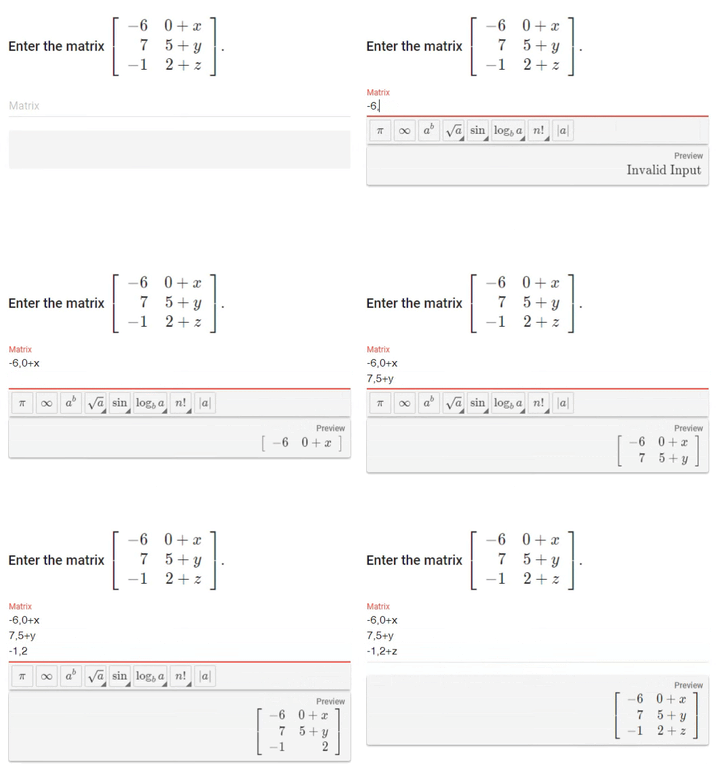
2. Matrices (The Comma and Enter Method)
You do not need to find a special bracket tool to build a matrix; the system builds it as you type.
-
Start your first row: Type your numbers separated by commas (e.g.,
1, 2). -
Create a new row: Press Enter on your keyboard.
-
Finish: The computer will automatically wrap your numbers in large matrix brackets.
3. Lists and Sets
If a question asks for multiple answers (like the two roots of a quadratic equation), you must separate them properly.
-
Use Commas: Put a comma between each item in your list.
-
Example: If the answers are a, b and c, type
a, b, c.
4. Geometry and Graphs
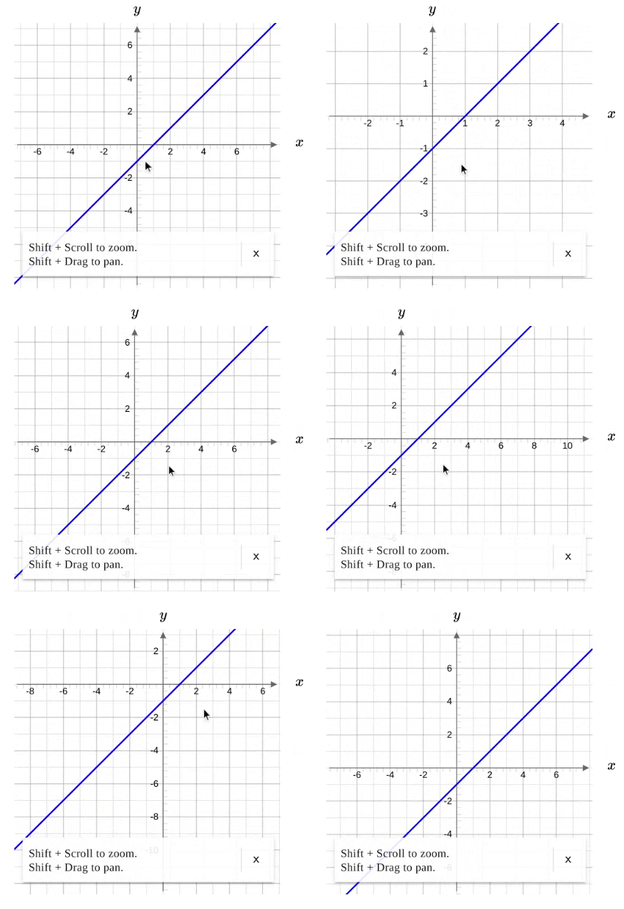
For interactive problems, your mouse or touch screen becomes your primary tool.
-
Coordinate Points: Always format as
(x, y)with parentheses and a comma. -
Moving Objects: Click and drag points on a graph or number line to change their position.
-
Navigating Graphs: Hold the Shift key while scrolling to zoom in, or hold Shift while clicking and dragging to pan across the graph.
5. Sorting
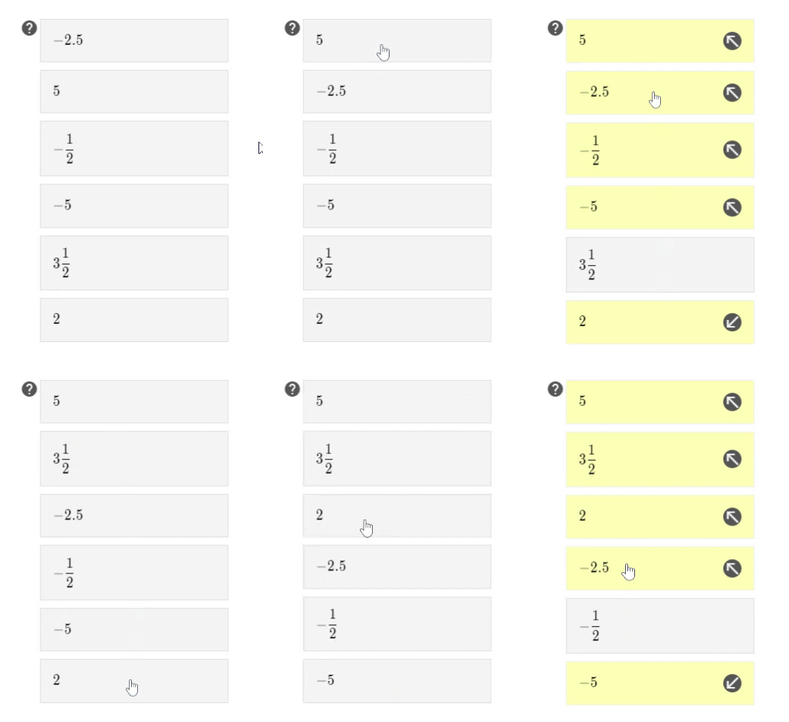
To sort, click an item, then click where you want it to go.
6. Free Response (Written Answers)
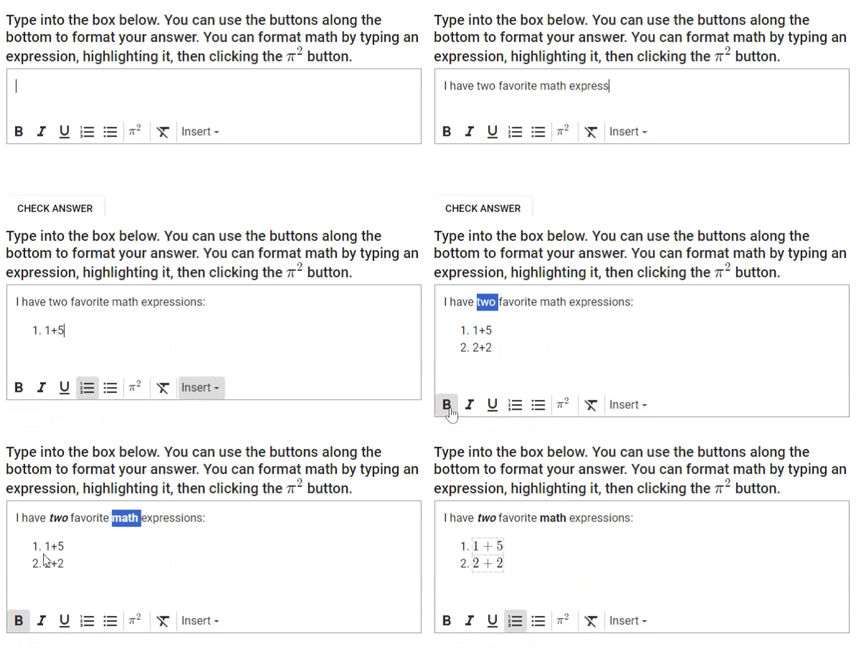
Some questions ask you to explain your work in words.
-
Formatting: Use the options at the bottom of the text box to bold or underline.
-
Adding Math: To include a math formula in your explanation, highlight your text and click the math format button.
Learn more about Free Response answers ➡️ How do I answer free-response questions?
Still Stuck?
If you are having trouble with a specific problem and the formatting guide isn't helping, reach out to your instructor. Ask your teacher for help | Derivita Support Center