![derivita-logowhite (2).png]](https://support.derivita.com/hs-fs/hubfs/derivita-logowhite%20(2).png?height=25&name=derivita-logowhite%20(2).png)
Digital math can be picky. Sometimes you have the right answer on your paper, but the computer marks it wrong because of how it was typed. Use these tools to make sure your work is read correctly every time.
| Section | What's inside? |
| Basics | Understanding the Toolbar, Preview Window, and Invalid Input errors. |
| Syntax Guide | How to type fractions, exponents, roots, and special symbols. |
| Topics & Logic | Specialized formatting for Intervals, Matrices, and Inequalities. |
| Completing your Assignment | How to use attempts, "Try Similar," and submit your final work. |
Entering an answer in Derivita works much like using a calculator, but you can do everything with the keys on a standard keyboard.
1. The Math Toolbar
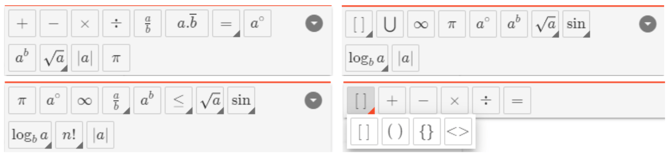
The toolbar is smart: it stays hidden to save space and only appears when you click in the answer box.
-
Buttons vs. Keys: You can click the icons (like the fraction ½ or square root √a) or use your keyboard shortcuts. For example, typing
/instantly creates a fraction bar. -
Special Symbols: Use the toolbar to find symbols that aren't on a standard keyboard, such as π, ∞, and √a.
2. The Preview Window (Your Final Check)

As you type in the box labeled "Answer," a preview window appears on the right. This shows exactly how Derivita is interpreting your math.
-
Watch the Formatting: Derivita follows a strict "order of operations." If you type
1/x+2, the computer thinks you only want thexin the fraction. -
Use Parentheses to Group: To put multiple terms under a fraction bar or inside an exponent, wrap them in parentheses
1/(x+2).
3. Fixing "Invalid Input"

If the preview window shows Invalid Input, it just means the system doesn't understand what you've entered yet.
Quick Fixes:
-
Incomplete Parentheses: Make sure every
(has a matching). -
Comma Errors: Do not use commas in large numbers (type
10000, not10,000). Commas are only for separating different answers in a list. -
Incomplete Symbols: If you use a square root or exponent, you must type a value inside the box.
- You're not done typing: For example, if you're entering 1+2=3, the computer won't understand 1+2=, because the equal sign needs to have something on both sides.
4. Exact Answers vs Rounded Answers
Most questions require an exact answer, so only round when the instructions specifically tell you to.
-
Correct (Exact): Type
1.4081 -
Incorrect (Rounded): Typing
0.33or1.41will likely be marked wrong unless the instructions specifically ask you to round.

- Simplifying: Most of the time,
2/4and1/2are both accepted unless the instructions say "Give your answer as a simplified fraction."
When a problem tells you to round, wait until you’re ready to enter your final answer. If you round while you’re still working, your final result may end up slightly incorrect.
Next → Entering Your Answers in Derivita — Syntax Guide
Still Stuck?
If you are having trouble with a specific problem and the formatting guide isn't helping, reach out to your instructor. Ask your teacher for help | Derivita Support Center