![derivita-logowhite (2).png]](https://support.derivita.com/hs-fs/hubfs/derivita-logowhite%20(2).png?height=25&name=derivita-logowhite%20(2).png)
Derivita is designed to help you learn from mistakes. Understanding the grading system will help you earn the highest score possible.
| Section | What's inside? |
| Basics | Understanding the Toolbar, Preview Window, and Invalid Input errors. |
| Syntax Guide | How to type fractions, exponents, roots, and special symbols. |
| Topics & Logic | Specialized formatting for Intervals, Matrices, and Inequalities. |
| Completing your Assignment | How to use attempts, "Try Similar," and submit your final work. |
1. Check Answer vs. Submit
There is a big difference between checking a single problem and turning in your whole assignment.
-
Check Answer: Use this button at the bottom of each question to see if your current answer is correct.
-
Attempts: Most assignments allow you 3 attempts per question by default.
-
Solutions: If you use all your attempts and are still incorrect, the step-by-step solution will appear so you can see where you went wrong.
2. The "Try Similar Question" Feature
This is the best way to improve your grade. If you get a question wrong and there are other versions of the question for you to try, you aren't stuck with a zero.
-
Resetting the Problem: Click "Try Similar Question" to get a new version of the problem with different numbers.
-
Full Credit: If you get the new version right, you still receive 100% credit for that problem, no matter how many versions it took.
3. Reading Your Assignment Summary
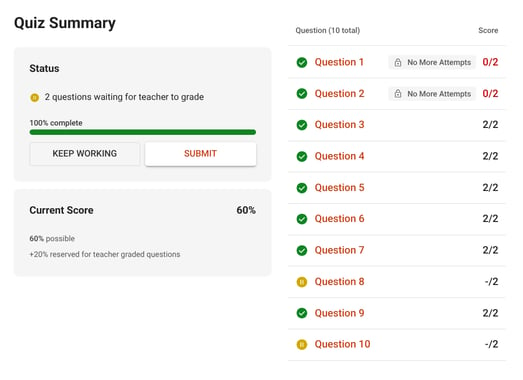
Once you finish the questions, you will see an Assignment Summary page. Use the icons to check your progress:
-
Gray Circle with Checkmark: Question has been submitted and will be manually graded by your instructor.
-
Orange Triangle: There's an issue with your answer. Please review your work and submit your answer.
-
No Icons: Question has been submitted.
4. Final Submission
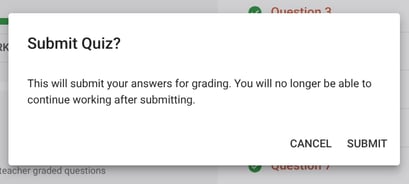
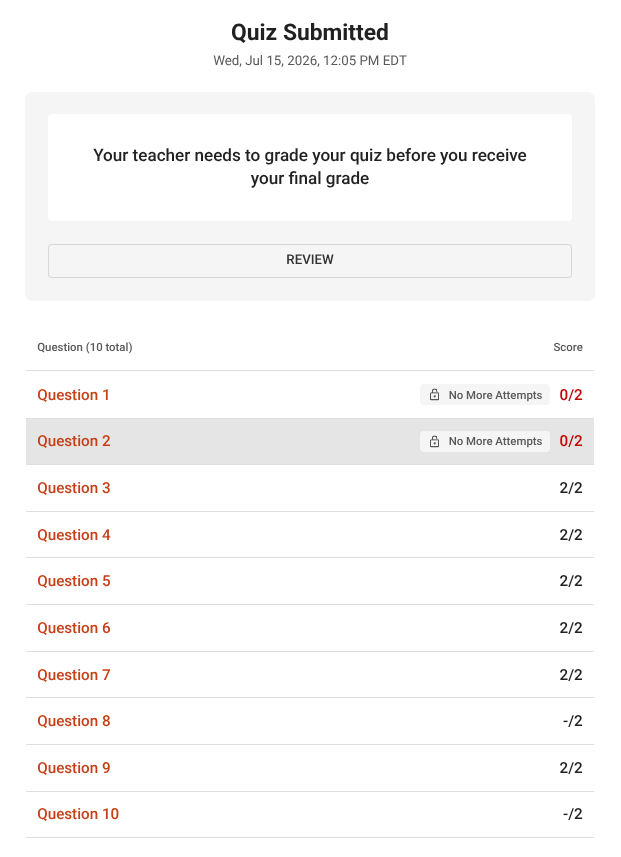
Your progress is saved automatically as you go, but you must officially submit to close out the assignment.
-
Homework: Click the "Send Grade" button on the summary page.
-
Quizzes & Exams: Click the "Submit" button.
Still Stuck?
If you are having trouble with a specific problem and the formatting guide isn't helping, reach out to your instructor. Ask your teacher for help | Derivita Support Center