![derivita-logowhite (2).png]](https://support.derivita.com/hs-fs/hubfs/derivita-logowhite%20(2).png?height=25&name=derivita-logowhite%20(2).png)
For teachers: the Assignments tab is every assessment you've given, with its score and type in one list — a fast way to spot the assignment that didn't land and open it.
Get there- Open your teacher dashboard.
- Click the Assignments tab.
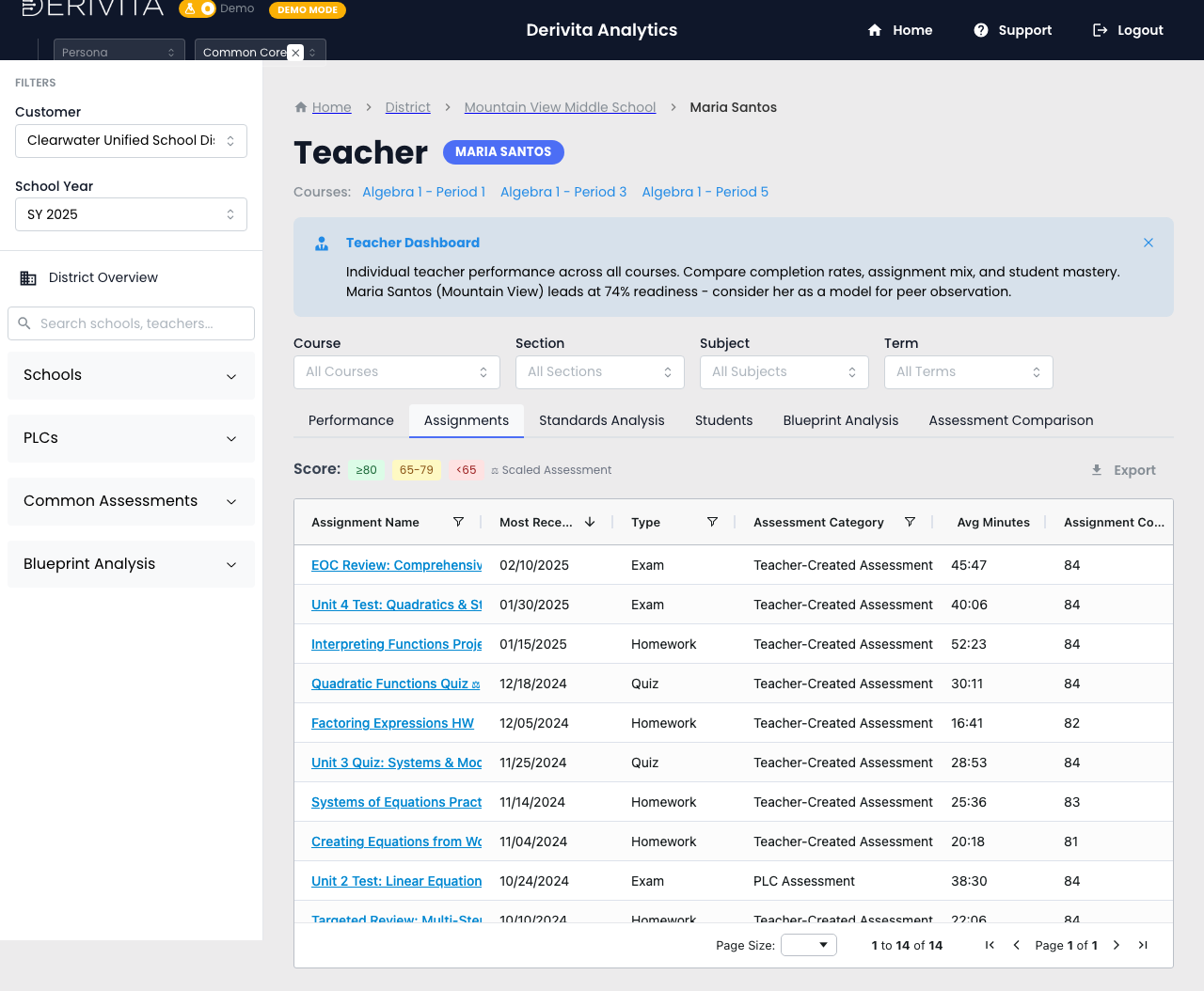 Teacher Assignments — every assessment with score, date, and type
- One row per assignment — 14 here — with Assignment Name, Most Recent Date, Type, and Assessment Category.
- Scores are color-banded so you can scan them: ≥80 (green), 65-79 (yellow), <65 (red). Common/scaled assessments are flagged with a ⚖ Scaled Assessment marker.
- The list is your assignment history at a glance — the red scores are where a lesson didn't stick.
Scan the score column for the reds, then click an assignment name to open its full breakdown — score distribution, item analysis, and per-student answers (the Assignment view). That turns "this one went badly" into "these items, these students."
▶ VIDEO
Related- Open one assignment: How did this assignment perform?
- Your reteach list: What to do Monday
- By standard: Every standard, ranked by mastery