![derivita-logowhite (2).png]](https://support.derivita.com/hs-fs/hubfs/derivita-logowhite%20(2).png?height=25&name=derivita-logowhite%20(2).png)
This feature allows students to ask for another try on quizzes and exams. They can click "Request Retake", and you'll be able to approve it without having to track down the particular test.
Please note: A student's retake request will be cancelled if they leave the retake page.
So this feature is helpful during class time, but not after hours or for async classes.
What it's like for students
When a student opens a quiz or exam they can retake, they'll be able to click "Request Retake":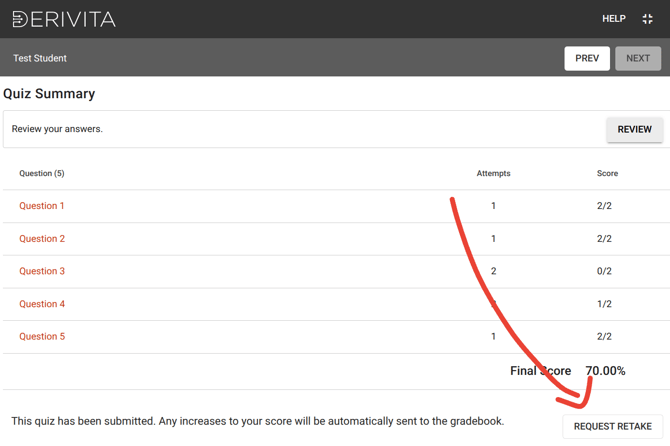
Then, they can click "Ready" to be put into the Exam Lobby. They should wait on that page until their teacher approves their retake. If they close the page, their request will be cancelled.
Note that students can't request retakes on common assessments (such as benchmarks), since those shouldn't be retaken.
What it's like for teachers
To check for students waiting for a retake, open any Derivita quiz or exam and click Exam Lobby.
There, you can click "Unlock" to let the student continue where they left off, or "Grant Retake" to have them start from scratch.
Note that you can't unlock a test if it can't be worked on any more. That could be because:
- The test is past due and "Allow Late Work" isn't turned on
- If you'd like to unlock, please first extend the due date or turn on late work for the test -
The student has used up all their attempts on every question
- In this case, choose "Grant Retake" instead
How to turn on retake requests
Retake requests are only available if the teacher has turned the feature on. To do so:
- Open any Derivita assignment
- Click the 3 dots in the top right and choose Course Settings
- Turn on Allow student retake requests