![derivita-logowhite (2).png]](https://support.derivita.com/hs-fs/hubfs/derivita-logowhite%20(2).png?height=25&name=derivita-logowhite%20(2).png)
For PLC leads: the Assignments tab is the assessments your team gave in common — one list, scored the same way — so you can see which shared assignment landed and which didn't.
Get there- Open your PLC from the sidebar.
- Click the Assignments tab. - The line above the tabs names your PLC's subject (here, Algebra 1), and this tab is scoped to it. If it lists a course with no subject set, ask your district admin to map one so that course's students count too.
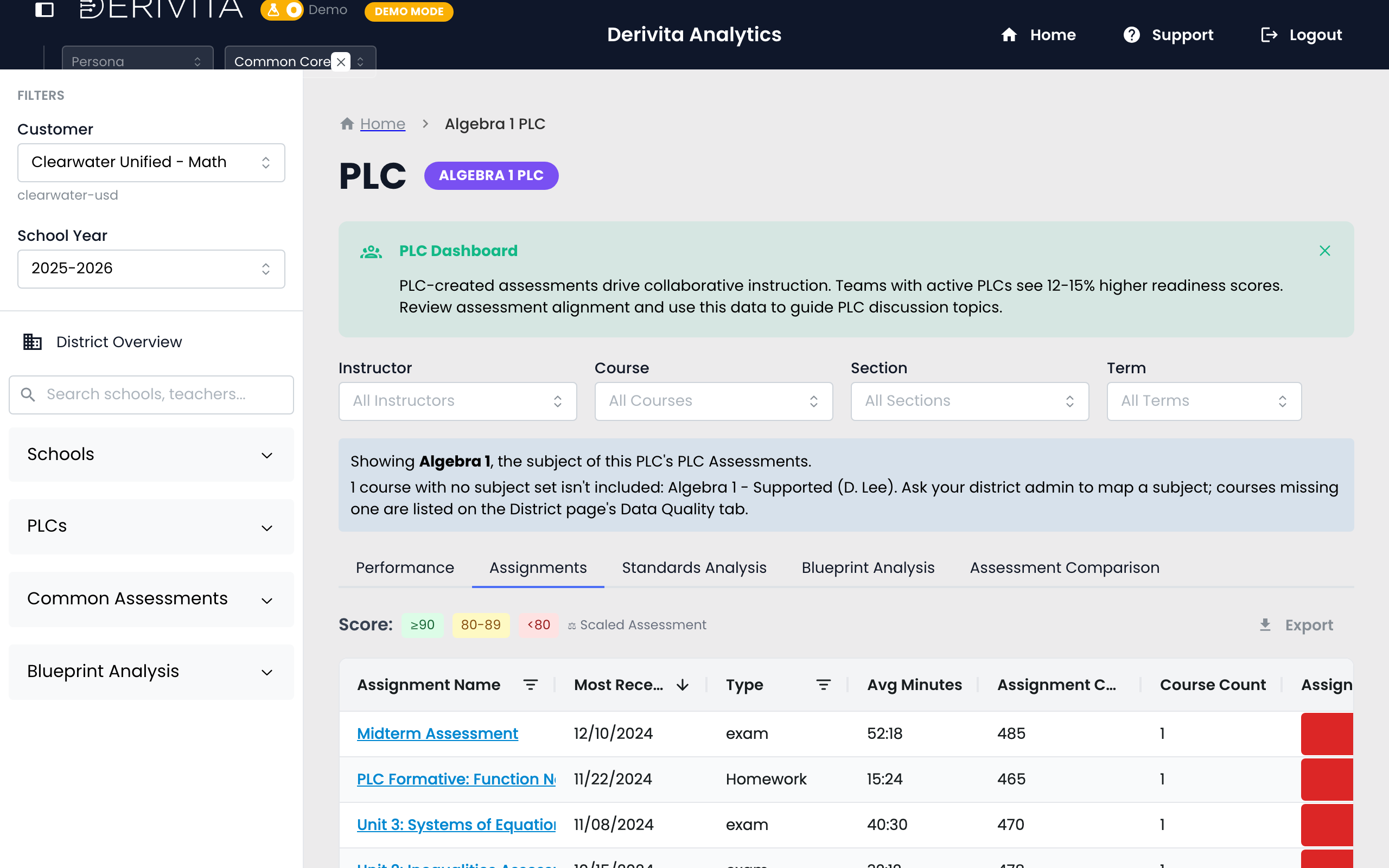
- One row per shared assignment — 7 here — with Assignment Name, Most Recent Date, and Type.
- Scores are color-banded to scan: ≥90 (green), 80-89 (yellow), <80 (red); common/scaled assessments carry a ⚖ Scaled Assessment marker.
- Because these are the team's common assignments, a red score is a whole-PLC signal — everyone gave it, everyone can compare.
Find the reddest shared assignment and click it to open the full breakdown — item analysis and per-student answers (the Assignment view). Bring that one item-level view to the meeting instead of a stack of gradebooks.
Related- Open one assignment: How did this assignment perform?
- Did the cohort improve: Compare up to four assessments
- What to reteach: What the team should reteach