![derivita-logowhite (2).png]](https://support.derivita.com/hs-fs/hubfs/derivita-logowhite%20(2).png?height=25&name=derivita-logowhite%20(2).png)
For PLC leads: the Assessment Comparison tab lines up several assessments for the same students, so you can see whether the reteach actually moved the cohort — not just whether this month's group scored differently.
Get there- Open your PLC from the sidebar.
- Click the Assessment Comparison tab. - The line above the tabs names your PLC's subject (here, Algebra 1). Assessment Comparison isn't narrowed to it — the picker lists every assessment the team gave, including any from a course with no subject set.
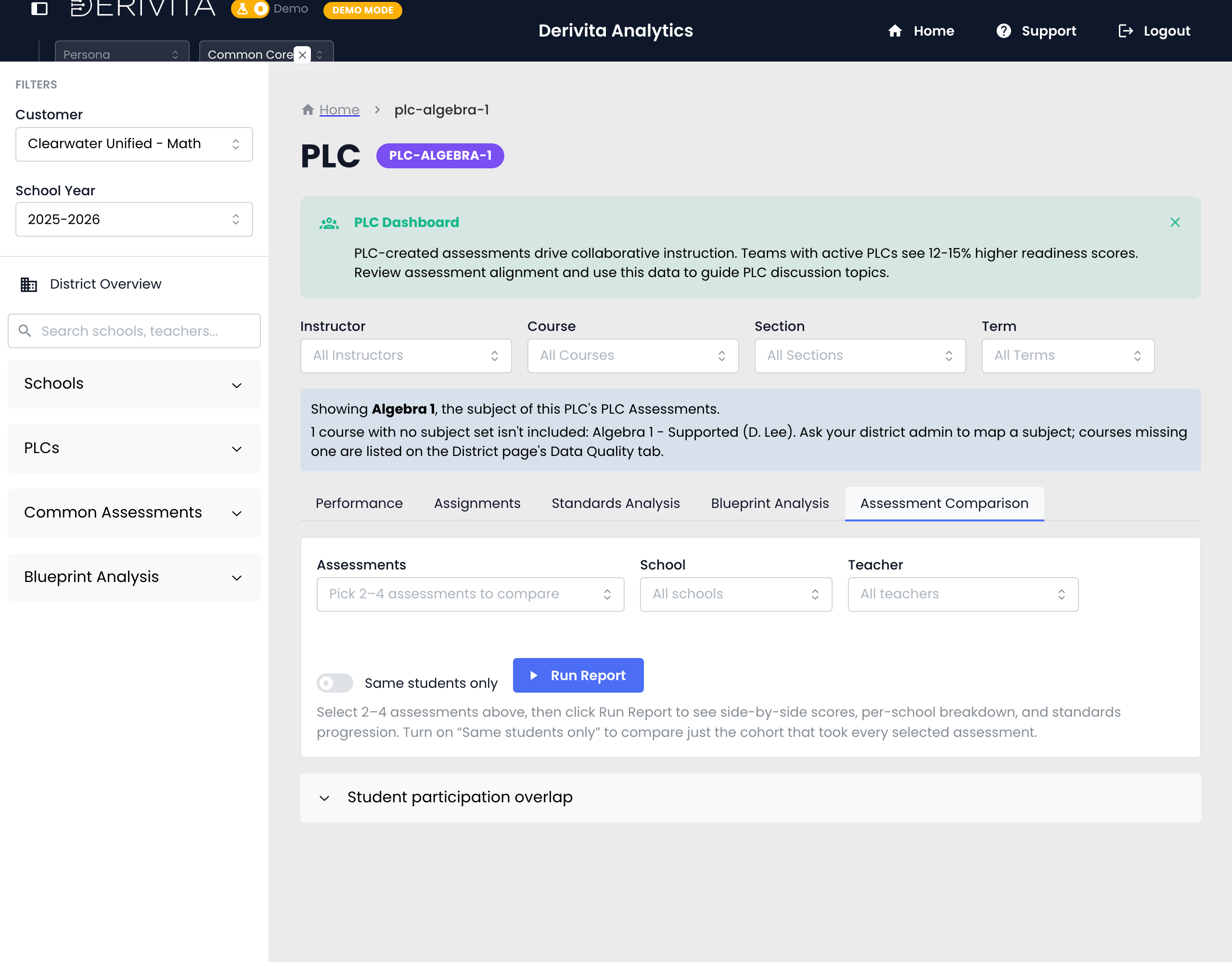
- Pick 2 to 4 assessments (filter by school or teacher first if you like), then Run Report.
- You get side-by-side scores, a per-school breakdown, and a standards progression across the selected assessments.
- Turn on Same students only — this is the important one. It restricts the comparison to the cohort that took every selected assessment, so a jump is real growth, not a change in who showed up. The student participation overlap shows how many students that is.
- In the per-question item analysis, a cell with ungraded responses carries a small corner marker — so a low-looking cell isn't misread as wrong answers when it's really still awaiting grading.
Pick a before/after pair — say a checkpoint and the final benchmark — turn on Same students only, and read the standards progression. That's the honest answer to "did our reteach work?"
Related- What to reteach: What the team should reteach
- The team vs the exam: PLC Blueprint Analysis
- Can I trust the benchmarks: Assessment Calibration